VxWorks Target Hardware Configuration: A Practical Guide
Configuring target hardware is a foundational step in every VxWorks project. Whether you’re developing embedded systems, real-time applications, or custom BSPs, a correct setup ensures reliable build, deployment, and debugging workflows.
🚀 Learning Objectives #
By the end of this guide, you will be able to:
- Understand the roles of host and target in a VxWorks environment
- Explain how a host-to-target connection works
- Configure and validate a target hardware setup
🧩 Why Target Configuration Matters #
Every VxWorks system ultimately runs on real hardware. Without a properly configured target:
- Applications cannot be deployed
- Debugging becomes unreliable or impossible
- BSP-level issues remain hidden
👉 In short, hardware configuration is the bridge between development and execution.
🔗 Host vs. Target: Core Concepts #
Before configuring anything, clarify these roles:
-
Host
Your development machine (typically Linux or Windows) running:- Build tools
- VxWorks SDK
- Debugging utilities
-
Target
The physical embedded board running:- VxWorks kernel
- Your application
How They Interact #
The host communicates with the target via:
- Ethernet (most common)
- Serial console (for boot/debug)
- JTAG (low-level debugging)
⚙️ How to Configure Target Hardware #
At a high level, the workflow looks like this:
1. Select the BSP #
Choose a Board Support Package (BSP) that matches your hardware.
- Defines CPU architecture
- Initializes peripherals
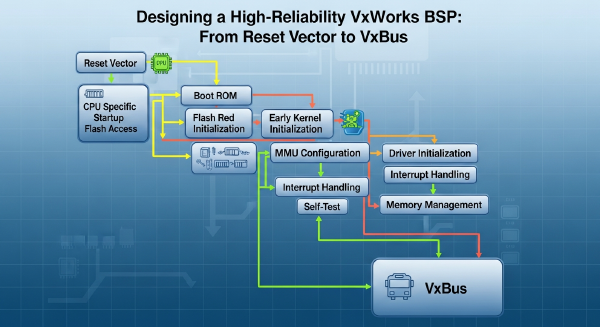
- Configures boot process
2. Build the VxWorks Image #
Using your host environment:
- Configure kernel components
- Enable required drivers
- Generate the bootable image
3. Establish Host-to-Target Connection #
Typical setup includes:
- Assigning IP addresses
- Connecting via Ethernet
- Verifying connectivity (e.g., ping, target shell access)
4. Download and Run #
Load the image onto the target via:
- Network boot (TFTP)
- Flash programming
- Debug tools
5. Validate the Setup #
Confirm:
- Kernel boots successfully
- Console output is visible
- Network stack is operational
🧠 CPU and Board Compatibility #
One of the most common failure points is mismatched CPU architecture and BSP.
Example Combinations #
| Board | CPU Architecture |
|---|---|
| xlnx_zynqmp_3_0_0_1 | ARMv8-A |
| fsl_p1p2_4_0_0_1 | PowerPC e500v2 |
| ti_sitara_a15_3_0_0_1 | Cortex-A15 |
What to Check #
- CPU architecture matches BSP
- Endianness (especially on PowerPC)
- Supported peripherals and drivers
👉 A mismatch here typically results in boot failure or unstable runtime behavior.
🛠️ Practical Tips for Reliable Setup #
- Always start with a reference BSP before customizing
- Verify console output early (serial is your best friend)
- Keep networking simple during initial bring-up
- Use incremental changes when modifying BSPs
📌 Key Takeaways #
- Target configuration is essential for deployment and debugging
- A stable host-to-target connection is the backbone of development
- Correct CPU + BSP matching prevents most low-level issues
🧠 Final Thoughts #
Mastering hardware target configuration is a critical milestone in VxWorks development.
Once your target is correctly set up, you unlock the ability to:
- Debug in real time
- Validate system behavior on actual hardware
- Build robust, production-ready embedded systems
👉 In VxWorks, everything starts with a working target.