VxWorks Multi-Image Boot: Universal Startup Method
In embedded production environments, the ability to switch between multiple VxWorks kernel images and applications on a single storage device—without recompilation—is highly valuable.
This guide presents a universal load-type startup method that enables automatic selection and execution of different VxWorks configurations from one hard disk, while keeping boot components fully decoupled.
🔍 VxWorks Startup Fundamentals #
VxWorks supports two primary startup models:
Load-Type Startup #
- Uses bootrom + external kernel image
- Common in development environments
- Kernel is loaded from a file system (e.g., disk or network)
Pros:
- Flexible image updates
- Easy to modify applications
Limitations:
- Requires manual file management when handling multiple images
Bootable-Type Startup #
- Kernel and application are combined into a single image
- Typically flashed into non-volatile storage
Pros:
- Simple deployment
- No external dependencies
Limitations:
- Requires full image rebuild and reflashing for updates
Key Insight #
The method in this article extends the load-type model to support:
- Multiple bootroms
- Multiple kernel images
- Multiple applications
All coexisting on a single disk.
⚙️ Boot Process Overview #
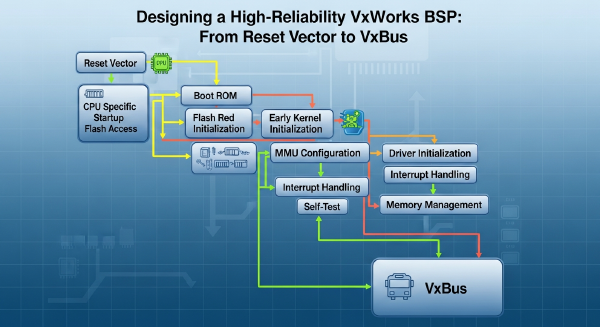
The VxWorks startup sequence proceeds through several stages:
-
romInit
- Initializes hardware (interrupts, memory, registers)
-
romStart
- Relocates bootrom to RAM
- Transfers control to system initialization
-
usrInit
- Initializes system components
- Spawns the boot task
-
usrRoot
- Sets up drivers and system services
-
bootCmdLoop
- Loads the kernel image
-
sysInit → Kernel Start
- Transfers control to the VxWorks OS
Default Boot Line Configuration #
Defined in config.h:
Network Boot Example #
#define DEFAULT_BOOT_LINE "fei(0,0) host:VxWorks h=192.168.0.33 e=192.168.0.18 u=user pw=123"Disk Boot Example #
#define DEFAULT_BOOT_LINE "ata=0,0(0,0) host:/ata0/VxWorks h=192.168.0.33 e=192.168.0.18 u=user pw=123"🚀 Universal Multi-Image Startup Method #
This solution combines:
- Load-type startup
- DOS 7.1 boot partition
- Batch-driven file switching
It enables menu-based selection of different system configurations at boot time.
🧩 Step 1: Prepare Bootrom, Image, and Startup Script #
Each application configuration includes:
- A dedicated bootrom
- A kernel image
- A corresponding startup script
Modify usrAppInit.c
#
Enable automatic script execution:
int fd;
if ((fd = open("/ata0a/startup.txt", O_RDWR, 0644)) != NULL) {
    usrStartupScript("/ata0a/startup.txt");
    close(fd);
}
Ensure the following component is included:
INCLUDE_STARTUP_SCRIPTExample startup.txt
#
id 1,0,"/ata0a/APP/rt.out";
DualNetWork_Switch_OO("198.1.108.1", "198.1.108.253", "255.255.255.0", 66, 0, 0);

id 1,0,"/ata1a/fei.out";
DualNetWorkSwitch("191.8.200.1", "255.255.255.0", "191.8.200.1", 0);

id 1,0,"/ata1a/iiutest";
taskSpawn 0, 100, 0, 0x1000000, main;
Each configuration can use its own version of:
startup.txt- Executable binaries
- Bootrom
💾 Step 2: Format Disk with DOS 7.1 #
Format the target disk using DOS 7.1 (FAT filesystem).
This ensures compatibility with:
- Boot loader utilities
- Configuration files
- Batch scripts
🖥️ Step 3: Configure Boot Menu (config.sys)
#
Define selectable boot entries:
[MENU]
MENUITEM=vxWorks.dbg, start the image
MENUITEM=jk1, JK1
MENUITEM=jk2, JK2
MENUITEM=jk1test, JK1test
MENUITEM=jk2test, JK2test
MENUDEFAULT=vxWorks.dbg,3

[vxWorks.dbg]
DEVICE=c:\HIMEM.SYS
DOS=HIGH,UMB
SHELL=C:\VXLOAD.COM C:\bootrom.dbg

[jk1]
[jk2]
[jk1test]
[jk2test]
🔁 Step 4: Automate File Switching (AutoExec.bat)
#
Use batch logic to switch active files dynamically:
@echo off
goto %config%

:jk1test
del bootrom.dbg
copy bootrom.ts1 bootrom.dbg
del D:\APP\rt.out
copy D:\APP\rt1.out D:\APP\rt.out
del test.txt
copy test1.txt test.txt
del iiutest
copy iiutest1 iiutest
goto end

:DOS
goto end

:end
How It Works #
- User selects a configuration from the boot menu
- Script replaces:
- Bootrom
- Application binaries
- Startup scripts
- Bootloader launches the selected environment
🔄 Boot Flow Summary #
- BIOS completes POST
- DOS menu appears
- User selects configuration
- Batch script swaps required files
VXLOAD.COMlaunches selected bootrom- Bootrom loads kernel
startup.txtlaunches application
📊 Key Advantages #
| Feature | Benefit |
|---|---|
| Multi-image support | Run multiple configurations from one disk |
| No recompilation | Modify apps independently |
| Full separation | Bootrom, kernel, and apps are decoupled |
| Scalability | Add/remove configurations easily |
| Compatibility | Works with existing BSP and workflows |
✅ Conclusion #
This universal VxWorks startup method enables true multi-image flexibility using a single storage device. By combining load-type booting with DOS-based menu selection and script-driven file management, it eliminates the need for repeated builds or reflashing.
The result is a highly maintainable and scalable solution where bootroms, kernel images, and applications evolve independently, making it ideal for both development and production environments.